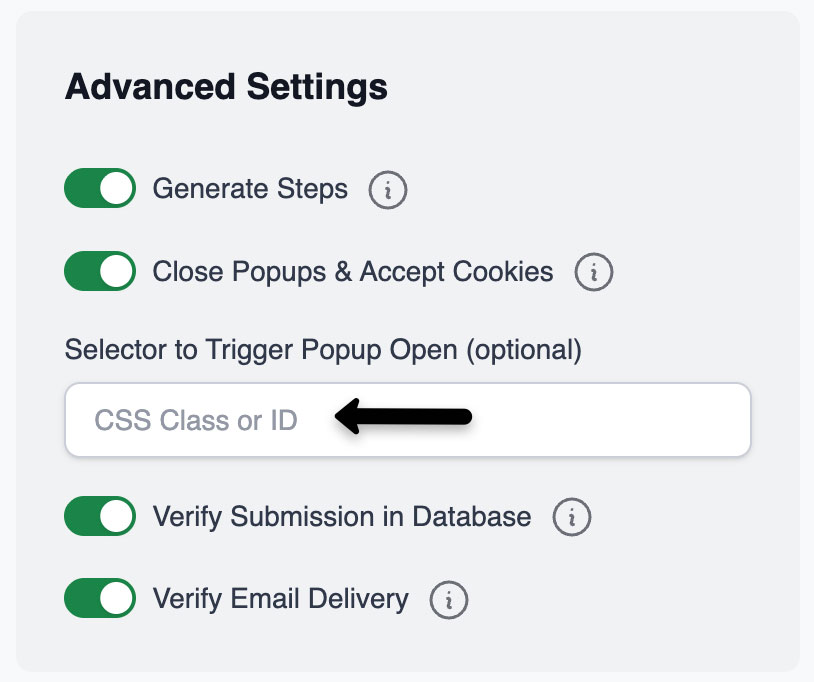
The Selector to Trigger Pop-Up setting allows you to optionally define a CSS class or ID that CheckView will automatically click whenever it appears during a test flow, including multiple occurrences. This option is ideal for managing interactive elements, such as cookie banners, chat widgets, or promotional modals, that may appear unpredictably and interfere with test execution but are not automatically detected by CheckView’s bots.
How It Works:
When the selector you define is detected on the page, CheckView automatically clicks it to close, minimize, or accept the popup.
The system continuously monitors for this element throughout the test, ensuring that unexpected overlays don’t interrupt form submissions or page transitions.
Example Use Cases:
Closing recurring chat widgets or lead capture modals during checkout tests.
Automatically dismissing “subscribe” popups that block form fields.
Accepting or minimizing banners that appear mid-test.
How to Use:
In the Test Flow Builder, find the Selector to Trigger Pop-Up (Optional) field.
Enter the CSS class or ID for the element you want CheckView to click (for example, .chat-close or #cookie-accept).
Save your test flow, CheckView will automatically handle this element during all test runs.