Black Friday Exclusive: $2 for 2 Months + 50% Off Any Plan

CheckView makes it easy to automate checkout testing for your WooCommerce store, helping you ensure your add-to-cart and checkout processes work reliably with every update. Follow the steps below to create and schedule your WooCommerce test flow.
From your CheckView website dashboard, click Add Test Flow.
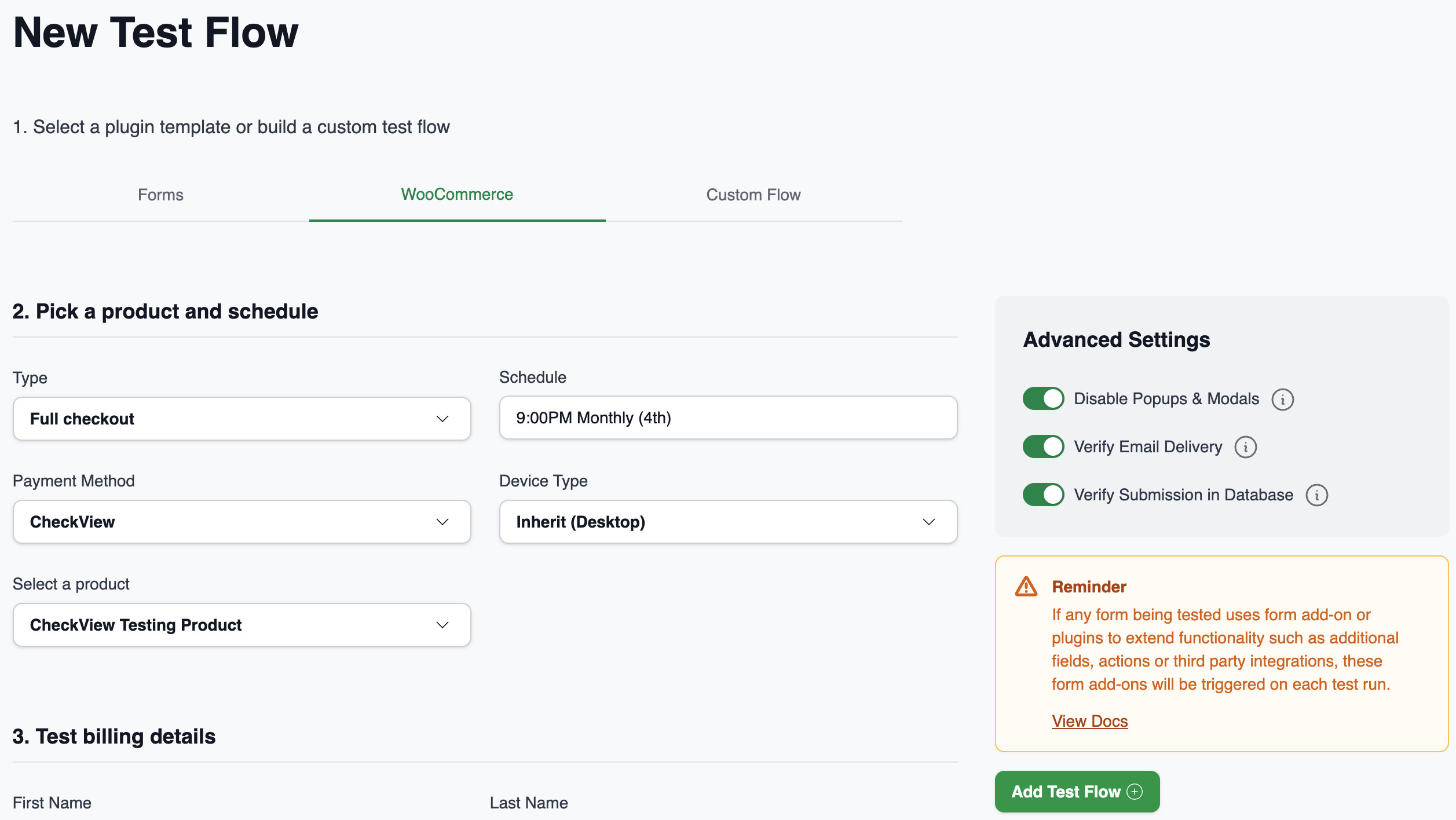
When you create a new test flow, CheckView automatically detects whether WooCommerce is active on your connected WordPress site. If it is, select WooCommerce from the list of available options.
CheckView automatically retrieves the last 1,000 products updated in your WooCommerce store. From the dropdown, select the product you want to include in the test flow.
You can choose between a real product from your store or the CheckView Testing Product, a hidden test product automatically created by CheckView. This product is invisible to normal users and excluded from search engines.
Notes:
CheckView offers two built-in WooCommerce test flow types:
Choose the option that best fits your testing goals and current site setup.
Select which payment gateway the test should use:
Important:
Choose how often you want the test to run and set the preferred time and timezone.
Keep in mind that running tests more frequently will use more of your available monthly test credits.
CheckView automatically fills in sample billing information:
You can adjust billing details for this test flow, but note:
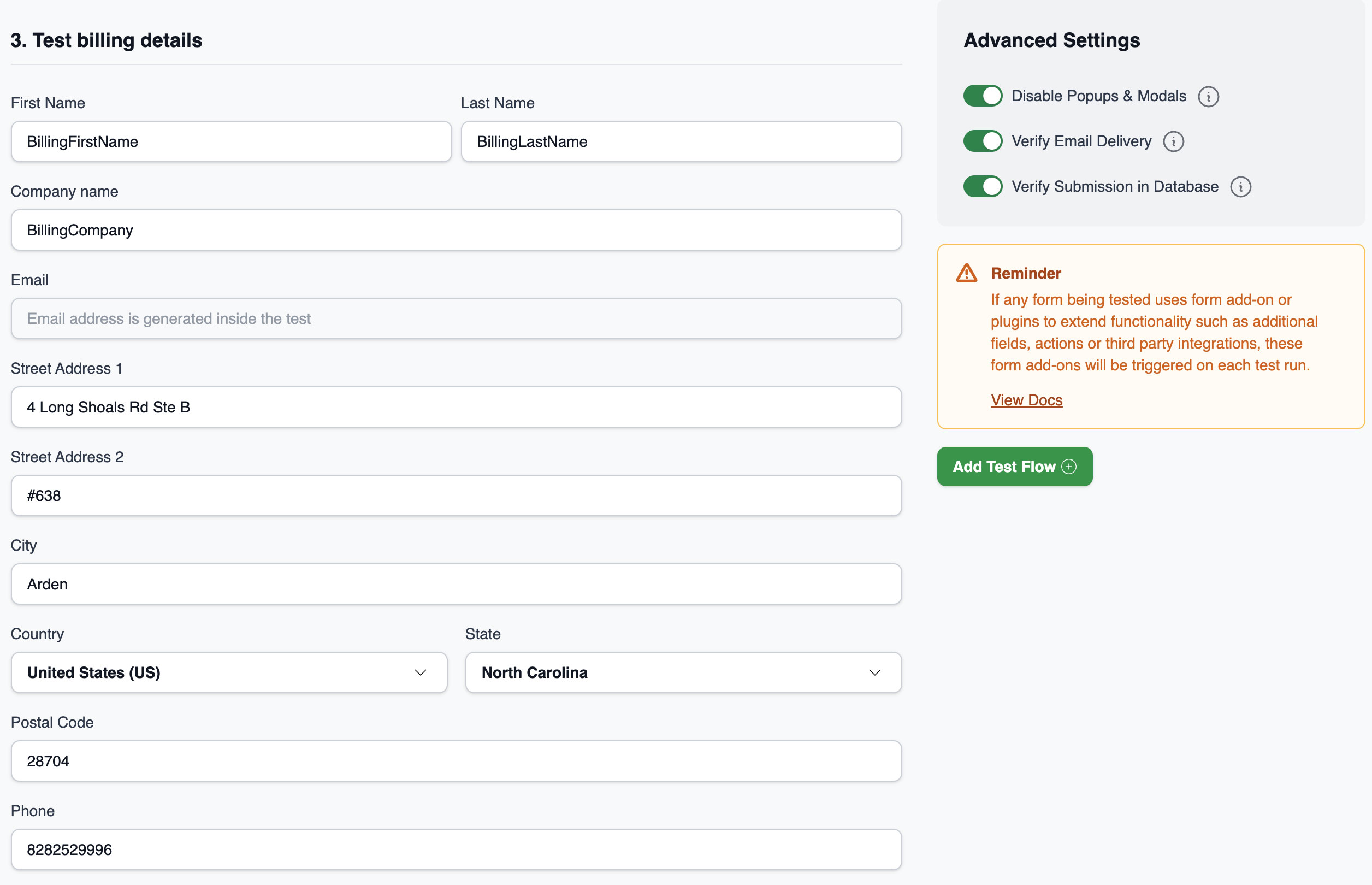
If you’d like to use different shipping information, CheckView will auto-fill test data similar to the billing details.
You can include test order notes, which are filled automatically using CheckView defaults or your organization variables (for Advanced plans).
Click Add Test Flow to begin setup. A popup will appear while CheckView initializes your test, which may take several minutes.
During initialization:
Once initialization finishes, CheckView automatically performs a preview test run.
If the test initializes and runs successfully, its status will show Passed.
If it fails, you’ll receive a detailed error message and video recording to help you troubleshoot.
Your test will now run automatically on the schedule you selected. If you encounter any issues or errors, refer to our troubleshooting guide for solutions.
To avoid inaccurate conversion tracking, make sure to exclude CheckView’s IP addresses from your analytics or order tracking tools.
You’ve successfully set up your first WooCommerce automated test flow in CheckView. Your checkout and add-to-cart processes will now be monitored continuously, helping you catch issues before your customers do.