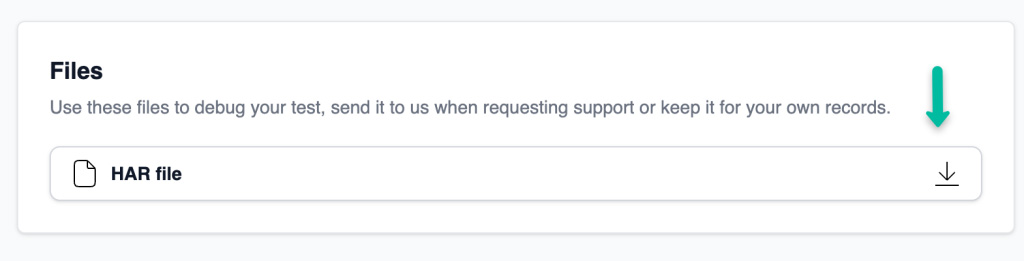
A Network Log (HAR) (HTTP Archive file) is a log of network activity between a browser and a server. It captures detailed information about requests and responses, including headers, payloads, timings, and more. In CheckView, you can download a Network Log (HAR) for each test run to debug issues or provide additional context to CheckView support for troubleshooting.
What is a Network Log (HAR)?
A Network Log (HAR) is a JSON-formatted file that records network requests made during a browser session, including:
Request and response headers.
HTTP methods (e.g., GET, POST).
Status codes (e.g., 200 OK, 404 Not Found).
Timing information (e.g., DNS lookup time, connection time).
Network Log (HAR)s are essential for debugging web application issues such as:
Slow page load times.
Missing or incorrect server responses.
JavaScript errors impacting test flows.
Redirects or blocked resources.
Downloading a Network Log (HAR)
Run a Test: Execute a scheduled or manual test in CheckView.
Navigate to the Test Results page for the completed test.
Save the file to your local device.
Debugging a Network Log (HAR)
To analyze a Network Log (HAR), you can use tools like Google HAR Analyzer. Here’s how to debug using this tool:
Drag and drop your Network Log (HAR) or click to upload it.
Examine Network Activity:
Look for failed requests, such as those with 4xx or 5xx status codes.
Analyze slow requests or bottlenecks (e.g., large payloads, long connection times).
Review blocked resources or errors related to third-party services (e.g., APIs, CDNs).
Focus on Key Areas:
Check requests related to the test flow (e.g., form submissions, AJAX calls).
Validate that the expected data was sent and received.
Identify unexpected redirects or authentication failures.
Pro Tip: Use the Network Log (HAR) alongside the CheckView video recording and test logs for a comprehensive view of what went wrong during the test.
How Network Log (HAR)s Help Support
If you’re unable to resolve an issue using the Network Log (HAR):
Share the Network Log (HAR) with CheckView support when reporting a problem. The file provides detailed context about:
Errors or unexpected server behavior.
Slow or incomplete responses from the server.
Missing elements or resources that impacted the test flow.
Pro Tip: When sending a Network Log (HAR) to support, include additional details such as the Test ID, a description of the issue, and any relevant steps taken during troubleshooting.
Network Log (HAR)s are a valuable resource for diagnosing test-related issues in CheckView. Contact our support if you have any questions regarding Network Log (HAR)s.