WP Legends Live Panel on March 11th: The Line Between Good and Great Agencies

When a test fails or a test flow setup encounters an error, CheckView can generate an AI-powered summary that explains what went wrong in plain language. Instead of manually reviewing step-by-step results, click one button to get observations, a likely root cause, and suggested next steps.
On any failed test or setup error page, look for the “Get detailed analysis →” button in the error card. Click it to generate an AI summary powered by Google Gemini.
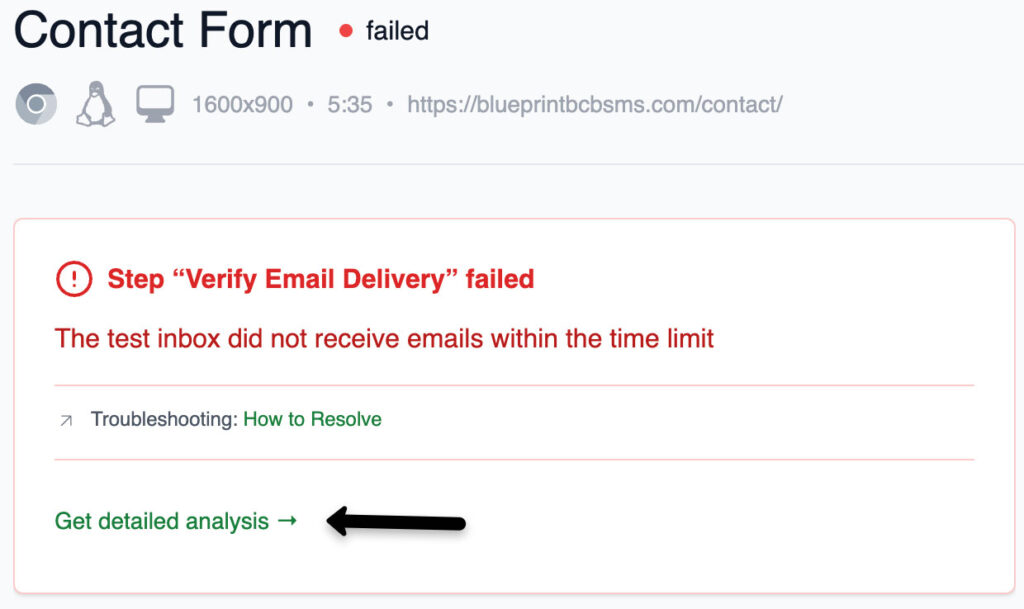
The button appears on:
On successful tests, the button shows a brief confirmation (“All steps executed as expected”) rather than a full AI analysis.
Each AI summary contains:
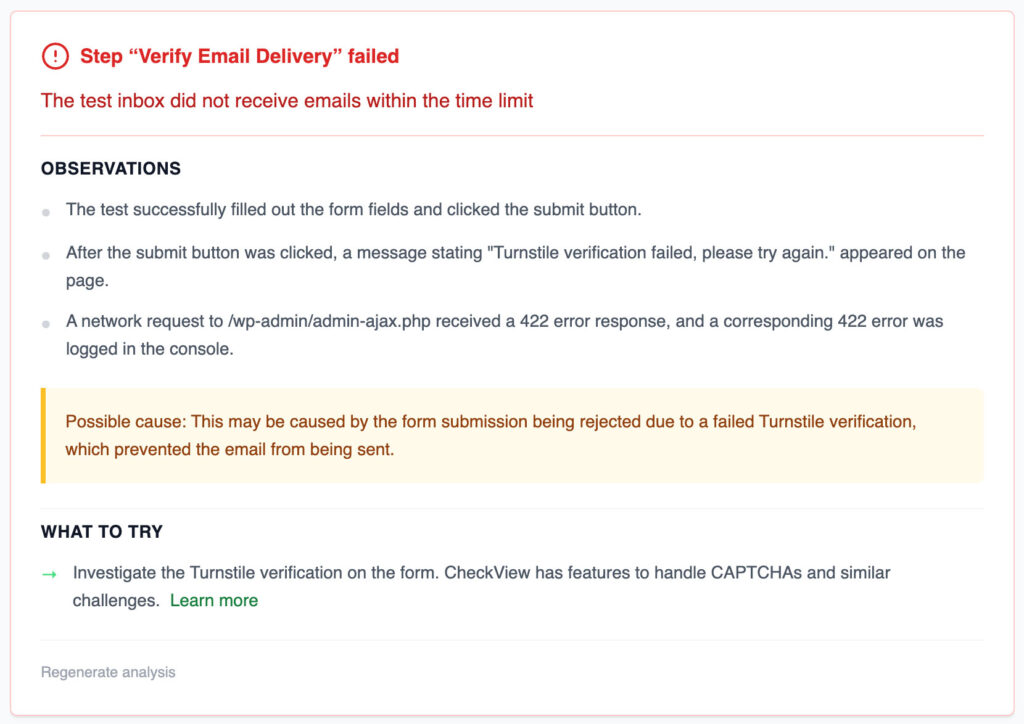
AI summaries are cached based on the failure pattern. If multiple tests fail in the same way (same step, same error type, same website), the cached summary is reused instantly instead of calling the AI again. This makes repeated lookups fast and free.
Super admins can force-regenerate a cached summary by clicking the “Regenerate analysis” button. This bypasses the cache and runs a fresh AI analysis. Use this if the original summary seems outdated or if the underlying issue has changed.