
CheckView MCP Server (Claude Code & Cursor)
The CheckView MCP server lets you manage your tests directly from AI assistants like Claude Code and Cursor. You can create test flows, trigger runs, and read results in plain language, without leaving your editor.
Before you start
You will need a CheckView Personal Access Token:
- In the CheckView dashboard, go to Settings → API Tokens. Only organization admins can create tokens, so if you aren’t an admin, ask one to create a token for you.
- Click Create token, give it a name (for example “Claude Code”), and copy the cvpat_ value. You will not be able to see it again. Tokens expire after one year.
Add it to Claude Code
Run this command, using your token:
claude mcp add checkview \
  --env CHECKVIEW_API_URL=https://api.checkview.io/api/v1 \
  --env CHECKVIEW_API_KEY=cvpat_YOUR_TOKEN \
  -- npx -y @checkview/mcp-server@latest
Then start Claude Code and try a prompt like “List my CheckView websites”.
Add it to Cursor
Open Settings → MCP → Add new server and paste:
{
  "mcpServers": {
    "checkview": {
      "command": "npx",
      "args": ["-y", "@checkview/mcp-server@latest"],
      "env": {
        "CHECKVIEW_API_URL": "https://api.checkview.io/api/v1",
        "CHECKVIEW_API_KEY": "cvpat_YOUR_TOKEN"
      }
    }
  }
}
Add it to Windsurf
Windsurf uses the same MCP configuration format as Cursor. Open Windsurf’s MCP settings, add a new server, and paste the same block:
{
  "mcpServers": {
    "checkview": {
      "command": "npx",
      "args": ["-y", "@checkview/mcp-server@latest"],
      "env": {
        "CHECKVIEW_API_URL": "https://api.checkview.io/api/v1",
        "CHECKVIEW_API_KEY": "cvpat_YOUR_TOKEN"
      }
    }
  }
}
Updating the MCP server
The setup above runs the server through npx, which checks npm for the newest release each time your AI assistant starts the server. To update:
- Restart your AI assistant: quit and reopen Claude Code, Cursor or Windsurf, or restart the CheckView server from the assistant’s MCP settings.
- If you still don’t see the latest changes and your setup says
@checkview/mcp-serverwithout@latest(setups added before October 2026 do), your npm may be older than version 9.6. Older npm, including the versions bundled with Node.js 18.16 and earlier, keeps running the copy it downloaded first. Update Node.js to a current release, or change your setup to@checkview/mcp-server@latest:- Claude Code: run
claude mcp get checkviewand copy your token from the output. Then runclaude mcp remove checkviewand run the command under Add it to Claude Code again with that token, from the same project folder you added it in. - Cursor and Windsurf: in the
argsline of your CheckView server, change@checkview/mcp-serverto@checkview/mcp-server@latest, then restart.
- Claude Code: run
- If you also installed the server globally with
npm install -gand your setup doesn’t use@latest, npx runs that global copy, so update it withnpm install -g @checkview/mcp-server@latest.
The newest release is listed on npm as @checkview/mcp-server.
What you can do
- Create form and WooCommerce checkout test flows
- Run tests and read pass or fail results, screenshots, and AI failure summaries
- Manage websites, schedules, and team members
- Generate and read UX audit reports
- Check your monthly test usage
- Test a single URL, compare test runs, watch run videos, and leave comments on runs
Good to know when creating test flows
- The checks that confirm a form submission was stored, an order was placed, or an email arrived are off unless you ask for them, because they don’t work with every server. Before creating a flow, the assistant walks you through a short checklist and recommends turning them on.
- Flows created through the MCP server close popups automatically.
- WooCommerce checkout flows use the CheckView Testing Product. Testing with one of your store’s real products needs your explicit confirmation.
- A flow’s setup can be started up to 5 times in 24 hours, and only one setup can run at a time.
- To have your form’s real recipients receive test emails, see Sending Test Emails to Form Recipients.
Good to know when running tests
- The assistant waits for results in short steps of under a minute and checks back until your tests finish, so long runs work even in assistants that cut off slow requests. In Claude Code you can ask it to wait longer per step.
- Running all tests on a website (admins only) covers one website at a time across your organization. You can list several websites in one request (see the example prompts below); the assistant runs them one at a time and waits for each to finish before starting the next.
- Running tests one website at a time also helps keep your hosts’ firewalls and spam protection from rate-limiting CheckView, which would show up as false failures.
- Every run counts toward your monthly test usage, so for a large batch ask the assistant to check your usage first.
- Short-step waiting needs version 1.1.10 or newer. If long runs stop with a timeout, or the assistant reports that a run is already in progress when nothing should be, see Updating the MCP server.
Example prompts
Once the server is connected, try prompts like these:
- “Show me all my websites and their current status”
- “Run all tests on example.com” (admins only)
- “Check my usage, then run all tests on example.com, example.org and example.net one at a time, and summarize any failures by website” (admins only)
- “What were the results of my last test run?”
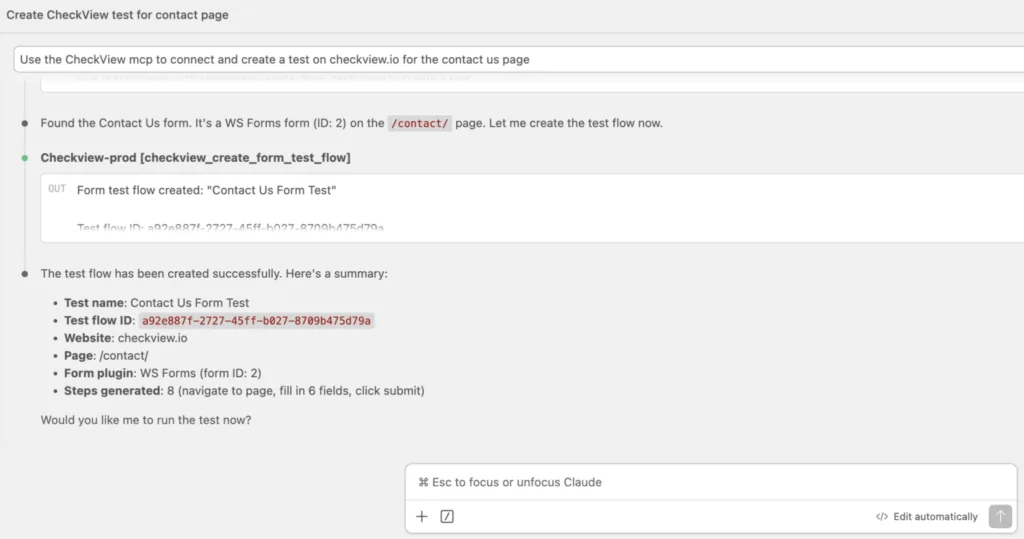
- “Create a new test flow for the contact form on example.com”
- “Show me test runs that failed this week”
- “Get an AI summary of my latest failed test run”
- “Pause testing on my staging site”
- “What’s my organization’s usage this month?”
Notes
- Requires Node.js 18 or newer on your machine. npx downloads and runs the server automatically.
- Your token works with your current role in the organization and stops working if you are removed from it. Treat it like a password. An admin can revoke it any time from Settings → API Tokens.
- The server is published on npm as @checkview/mcp-server.