
Sending Test Emails to Form Recipients
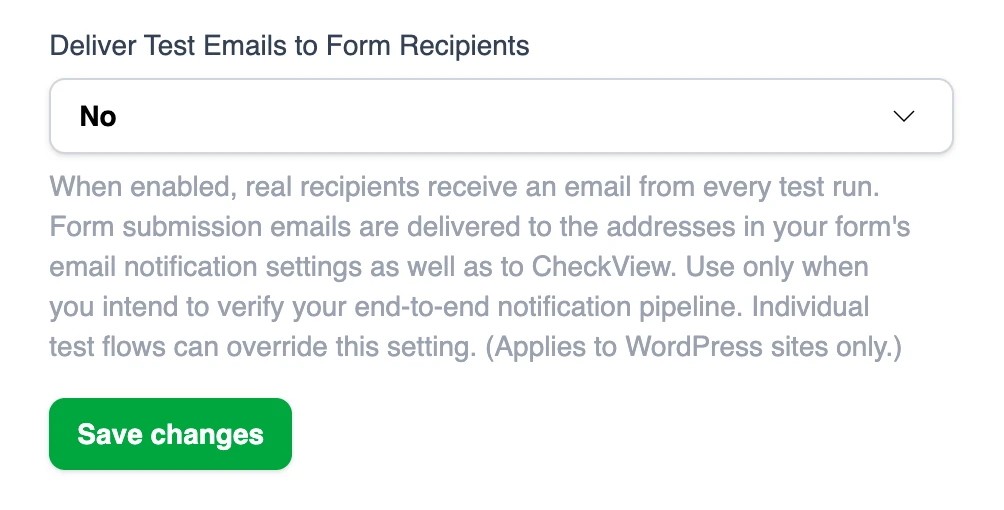
By default, CheckView redirects the notification emails your form sends during a test to the CheckView test inbox, so your real recipients never receive test submissions. The Deliver Test Emails to Form Recipients setting changes that. When it is on, test emails are delivered to the addresses in your form’s email notification settings as well as to CheckView.
When to use it
Turn it on when you want to confirm the whole notification pipeline, all the way to a real inbox. For example, an agency can let a client see that the form on their site is tested and that its emails really arrive.
Keep in mind that real people receive an email from every test run, scheduled or manual. A test flow scheduled to run hourly sends about 24 emails a day.
Requirements
- A WordPress website. The setting is not available for other website types.
- CheckView helper plugin 2.5.1 or newer. On older versions the setting has no effect, and test emails go only to the CheckView test inbox. See Installing and Updating the CheckView Helper Plugin.
- An admin role in your CheckView organization to turn the setting on.
Where to set it
The setting is off for new organizations, and new test flows inherit the organization’s setting.
- Organization default: go to Settings, open Platform Configuration, and set Deliver Test Emails to Form Recipients under Email Recipient Handling to Yes or No. When you save Yes, CheckView asks you to confirm, because every test flow that inherits the setting will start sending emails to real recipients.
- One test flow: open the test flow’s settings, go to Advanced, and in Device Details choose Inherit from organization settings, Yes, or No.
- When creating a test flow: below the Advanced Settings panel, clear the Inherit from organization checkbox and switch Deliver Test Emails to Form Recipients on or off.
What happens during a test
When the setting is on:
- Your form’s notification emails go to their usual recipients, including any CC and BCC addresses.
- The CheckView test inbox is added to the To line, so email checks in your test flow keep working.
- The CheckView test inbox is also added to the Reply-To. If the form sets no Reply-To of its own, CheckView’s address is the only one, so a recipient who replies to a test email is replying to CheckView rather than to the person who filled in the form.
- Test emails are not marked as tests. There is no subject prefix or footer, so let your recipients know to expect them.
It covers the notification emails your form plugin sends and other emails your site sends through WordPress during the test, including WooCommerce order emails. One exception for now: if your Gravity Forms notifications are sent through the Gravity Forms SendGrid or Postmark add-on, test emails still go only to CheckView.
When the setting is off, test emails go only to the CheckView test inbox, and CC and BCC recipients are removed.
Using the REST API or MCP server
Through the API, only admins can change this setting. A member creating a test flow can leave it at inherit or set it to no.
- REST API: when creating a test flow, send
allowOriginalRecipientswithinherit,yes, orno. When updating a test flow, sendallow_original_recipientswith the same values. The organization default is shown in the response ofGET /organizations/meand can only be changed in the dashboard. See REST API getting started guide. - MCP server: pass
allow_original_recipientstocheckview_create_form_test_floworcheckview_create_test_flow(true or false; leave it out to inherit), or tocheckview_update_test_flow(yes,no, orinherit). See CheckView MCP Server.