
No Plugins Detected When Creating a Test Flow
Note: CheckView now automatically whitelists itself in most security plugins and has tightened how it detects real blocks, so this is far less common than it used to be. If a security plugin is the cause, whitelist CheckView’s IP addresses rather than disabling the plugin.
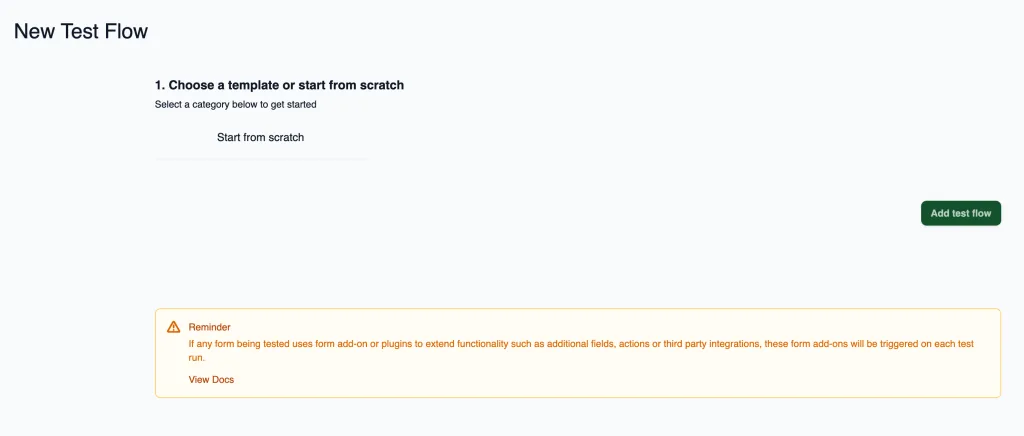
If CheckView is unable to detect supported plugins on your site when creating a test flow, it may indicate a conflict or restriction preventing our API from accessing the necessary data. Below are steps to troubleshoot and resolve the issue.
Steps to Resolve
1. Disable All Plugins and Switch to a Default Theme on a Staging Site
To determine if a conflict is causing the issue:
- Clone your website to a staging environment.
- Temporarily disable all plugins.
- Switch to a default WordPress theme, such as Twenty Twenty-Three.
- Connect the staging site to CheckView without any Basic Auth
- Try creating a test flow in CheckView for the staging site
If plugin detection works after these steps, enable plugins one by one and switch back to your original theme to identify the conflicting element or plugin and either disable that plugin or contact our support.
2. Whitelist CheckView IPs in Your Firewall or Security Settings
Ensure that your hosting provider, Cloudflare, or any other Web Application Firewall (WAF) is not blocking CheckView’s API requests by whitelisting our IP addresses here.
3. Check Security Plugins for Blocking Behavior
Some security plugins may partially block API requests. Review and whitelist CheckView’s IP addresses in any active security plugin (such as Wordfence, Sucuri, or Solid Security), then try creating the test flow again, rather than disabling the plugin.
If the issue is resolved after disabling a security plugin, configure its settings to allow API requests from CheckView’s IPs or add an exception for CheckView.
4. Ensure Data Retrieved by CheckView’s API Does Not Contain Special Characters
Special characters in forms, plugin data, or other elements may interfere with our API. Check for and remove any unusual or non-standard characters in:
- Form field names
- Woo Product field names
- Plugin names or settings
Retry creating the test flow after addressing any potential issues.
Related Articles
- Blocker Detection – Often caused by security plugin blocks