
Teams and Delegated Access
CheckView allows organizations to add team members with tailored permission levels, ensuring effective collaboration while maintaining control over sensitive settings.
Each organization in CheckView can include multiple team members, who are granted access to the organization’s settings, websites, test flows, and test results based on their assigned role. The number of team members an organization can have depends on its subscription plan.
Roles and Permissions
- Admin
- Access Level: Full access to all aspects of the organization.
- Capabilities:
- Manage billing and subscription plans.
- Configure organization-wide settings.
- Add, edit, and delete websites and test flows.
- Manage all test results and flows.
- Invite new team members or promote/demote existing ones.
- Ideal For: Organization owners or team leads who need full control.
- Collaborator
- Access Level: Restricted to specific websites and test flows, with no access to organization settings or billing.
- Capabilities:
- Modify, run, and delete test flows for websites they have access to.
- Review test results and adjust test configurations.
- Cannot access organization-wide settings or manage other team members.
- Customizable Access:
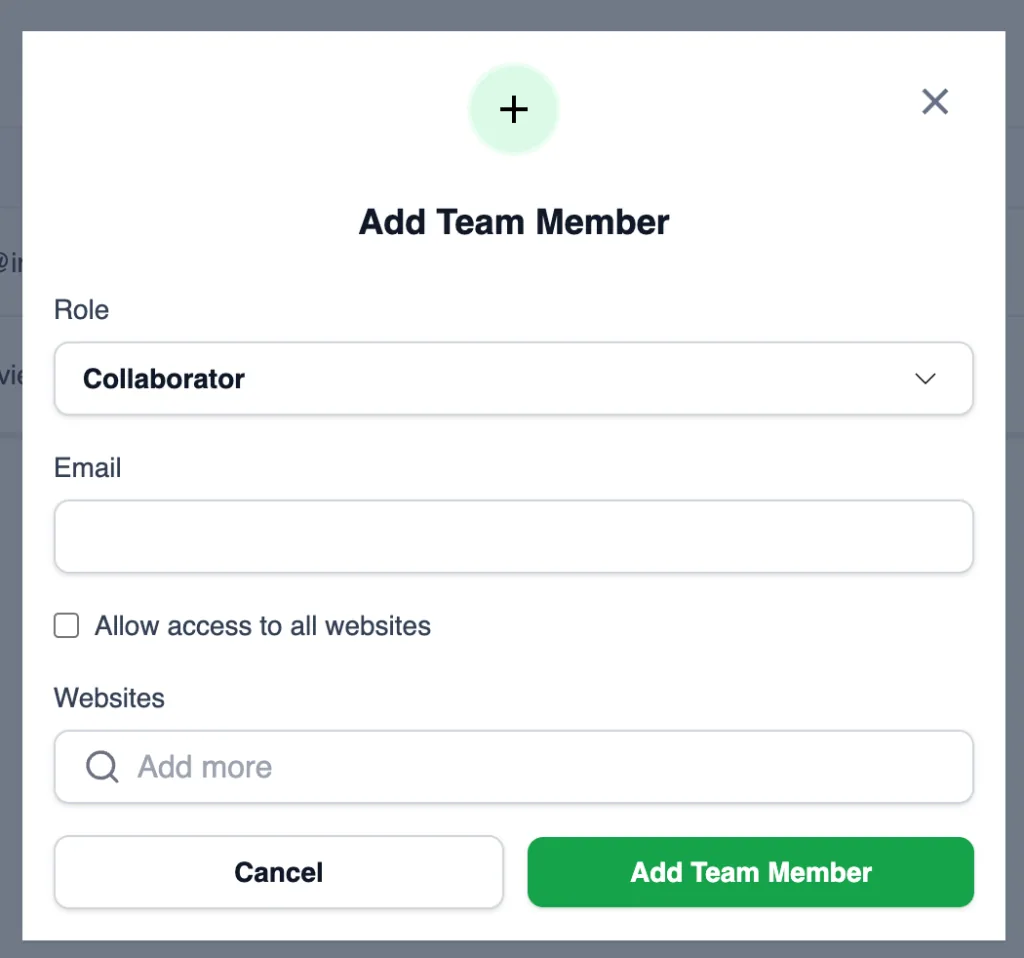
- When you invite a collaborator, no websites are selected. Check the Allow access to all websites box, or select the specific websites they can manage. You need to choose at least one.
- Ideal For: Developers, marketers, and other specialists who need limited access.
Cross-Organization Access
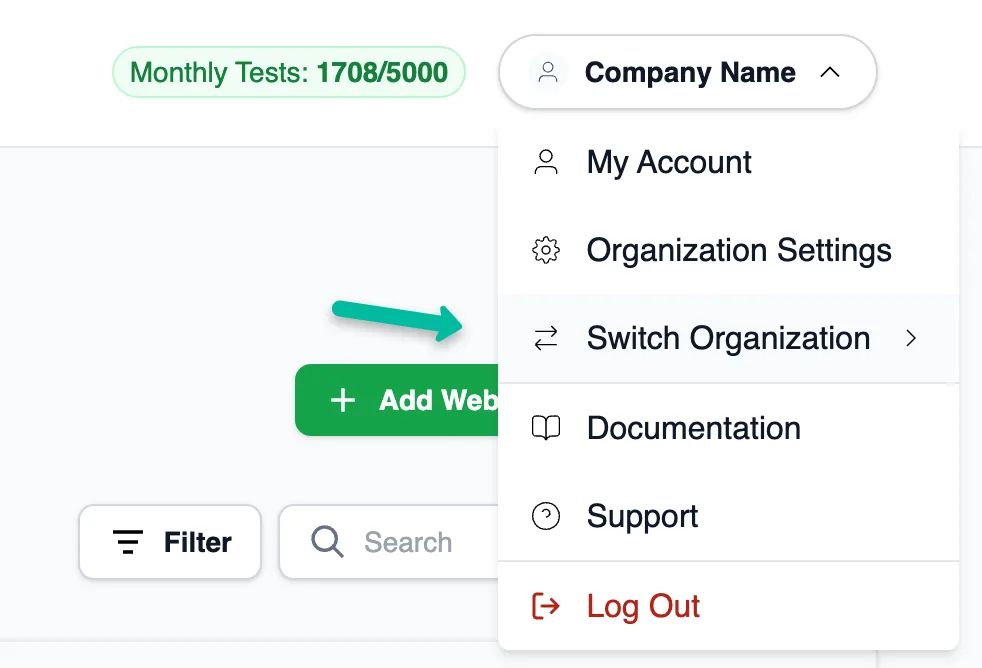
A single user account can be associated with multiple organizations. Users can switch between organizations they belong to by clicking on the Switch Organization menu in the top-right corner of the dashboard. This is useful for agencies or consultants working across multiple clients. Label your organizations clearly (e.g., by client name) to make switching easy.
Inviting Team Members
- Navigate to the Team section in Organization Settings.
- Click Add team member.
- Choose the appropriate role (Admin or Collaborator) and configure their access settings.
- Enter the email address of the person you want to invite.
- If they don’t already have a CheckView account, an email invite will prompt them to register and join.
- If they already have an account, they’ll receive an email invite to accept when logged in.
- Click Add Team Member.
Good to know about invitations:
- Only admins can invite team members, and the organization needs an active or trialing subscription whose billing is not paused.
- The invitation link expires after 7 days and must be opened with the email address it was sent to. If it has expired, the person you invited needs a new invitation.
- While an invitation is still pending, you can’t invite the same address again. Cancel the pending invitation first, or wait for it to expire.
- Pending invitations are listed on the Team page, where an admin can cancel them.
Removing Team Members
- An organization always needs at least one active admin. You cannot remove or demote the last active admin, or leave the organization if you are that admin. Add another admin first.
- When a member is removed or leaves, their API tokens for the organization stop working.
When to Use Notifications Instead
If you only need someone to receive email notifications about test results (e.g., when a test passes or fails), you don’t need to add them as a team member. Instead:
- Go to the Notifications section in either the test flow settings or organization-level settings.
- Add their email address to the notification list.
This is ideal for stakeholders like clients or non-technical team members who only need updates without having dashboard access
Related Articles
- REST API – Getting Started – API token scopes map to team roles