
How to Automatically Test Gravity Forms
Plenty of sites run Gravity Forms less for the form builder than for what happens after someone presses Submit. Its add-on library turns an entry into a Mailchimp subscriber, a HubSpot contact, a Zapier trigger, a webhook call or a PDF, and each of those connections is a feed you set up once and then stop thinking about.
That is exactly the problem. A feed is configured once and trusted forever, and some of that work happens after the visitor has already moved on. Gravity Forms can hand feeds, and on recent versions notifications too, to a background request that runs after the confirmation message appears. The visitor sees “Thanks, we’ll be in touch”, the entry is in the database, and nothing about that screen tells you whether the next step actually happened.
The same is true of every form, whichever plugin built it. The form is where the work begins, not where it ends. Behind it sit a mail provider, your DNS records, a CAPTCHA service, a spam filter and your connected add-ons, and any of them can change without anyone touching Gravity Forms.
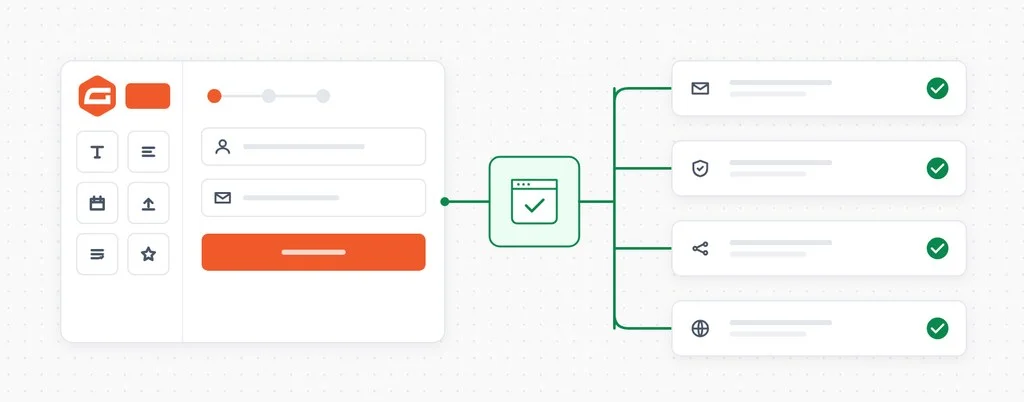
Automated testing closes that gap. CheckView fills in your Gravity Forms form in a real browser, submits it, and confirms the entry was stored and the notification delivered, on a schedule you choose. Because Gravity Forms is supported natively, CheckView finds your forms, builds the steps, keeps test emails away from your real recipients and checks each submission against your database.
What a scheduled form test actually verifies
The failures that stop a form doing its job rarely show up on the form itself:
The notification. An SMTP plugin’s API key expires, someone tidies up DNS and removes the SPF or DKIM record your mail relies on, or your provider starts sending notifications to spam. The entry saves. The email never arrives.
The gatekeepers. A reCAPTCHA key is regenerated, a Turnstile site moves to another Cloudflare account, or a freshly installed security plugin decides real visitors look like bots. A form that rejects everyone looks exactly like a form nobody is using.
The rest of the site. A theme update, another plugin, or a caching or optimization plugin that changes how JavaScript loads. Multi-page forms, conditional logic and file uploads all depend on that JavaScript, so a change that has nothing to do with your form can still stop visitors reaching the last page of it.
A scheduled test runs the whole path from start to finish and tells you the same day when any part of it stops working.
What CheckView does on a Gravity Forms test
Point CheckView at a Gravity Forms form and it takes care of the details:
- Automatic test generation. CheckView detects your active forms, finds the pages they appear on through the Gravity Forms block or shortcode, and builds the steps.
- Real submissions, no real emails. Notifications are redirected to the CheckView test inbox for the duration of the run, and CC and BCC recipients are stripped. With Background Notifications on, the test’s notifications are sent during the submission so they are redirected too.
- CAPTCHA and spam checks handled cleanly. The Gravity Forms CAPTCHA field is removed for the CheckView test session only, and the reCAPTCHA and Cloudflare Turnstile add-ons are switched off for that session. Akismet, CleanTalk, Gravity Forms Zero Spam, hCaptcha for WordPress and Simple Cloudflare Turnstile are bypassed the same way. WP Armour stays active and is simply satisfied, and the Gravity Forms honeypot cannot quietly throw a test entry away. Every real visitor keeps the full protection.
- Only spam checks are waved through. CheckView clears anti-spam and CAPTCHA errors and nothing else. If someone adds a required field that the test does not fill in, the test fails and tells you, rather than passing quietly.
- Feeds under your control. With Disable Form Integrations During Tests turned on, every add-on feed is removed from the test submission, so Mailchimp, HubSpot, Zapier, Webhooks and the rest never see a test entry. Turn it off for a flow and the feeds run for real, and CheckView holds on to the test entry for about 15 minutes so feeds processed in the background can still find it.
- Verified, then cleaned up. The submission is checked field by field against the values the test entered. Gravity Forms stores each part of a Name or Address field separately, so each part is checked on its own, and dates match whatever display format the form uses. The entry is then removed from your Gravity Forms entries.
- The trickier parts of a form. Upload fields get a sample file that matches the field’s accepted file types, and multi-file uploads are allowed to finish before the form is submitted. Date fields work as a calendar, a plain field or dropdowns, including rules like future dates only or no weekends. Multi-page forms are navigated page by page, Gravity Perks Page Transitions included, and fields hidden by conditional logic are skipped just as they would be for a visitor.
Setting it up
- Install the CheckView helper plugin on your site and keep it up to date.
- Make sure the form you want to test is set to Active in Gravity Forms.
- In your CheckView dashboard, open the website and click Add Test Flow.
- Choose Gravity Forms, then pick the form and the URL it appears on. If a page builder placed the form and its page is not listed, use Add Custom URL.
- Decide how the flow should treat integrations. Leave Disable Form Integrations During Tests on to keep test entries out of your connected tools, or turn it off for the flow when you want the test to prove a feed delivers.
- Set a schedule. Daily is the common choice for a contact, quote or lead form.
CheckView builds the steps and runs a first test straight away. Whenever you want to watch a run yourself, trigger one manually and play back the recording.
Getting the most out of it with feeds
Feeds are where much of a Gravity Forms site’s value lives, so a few practical points are worth knowing.
Decide which flows prove the feeds. For most forms, keeping integrations suppressed is the right default: the form submits and the notification arrives, without a daily test contact in your CRM. For the form whose feed really matters, such as a lead form feeding a sales pipeline, a flow with integrations allowed shows the feed still delivers. Expect a test contact in the connected tool, or use the feed’s conditional logic to skip entries whose email address ends in checkview.io.
Know what suppression covers. CheckView removes add-ons that run as Gravity Forms feeds. Custom code that hooks into form submission directly, outside the feed system, still runs during a test. If an integration must never see a test entry, test it on a staging site.
Expect a brief visitor in your Entries list. Each test entry stays in Gravity Forms for about 15 minutes before it is removed, which is what gives background feeds time to finish. The removal runs through WP-Cron, so on a quiet site it can take a little longer.
A few things are outside a test. CheckView fills the rows a List field shows on load but does not add more, it does not use Save and Continue, and it does not switch payment add-ons like Stripe or PayPal into test mode. For a form that takes payment, point the test at a staging site with the payment add-on in test mode.
Your feeds do the real work behind a Gravity Forms site, and a scheduled test makes sure they still have something to work with. Happy Testing!