
How to Automatically Test Fluent Forms
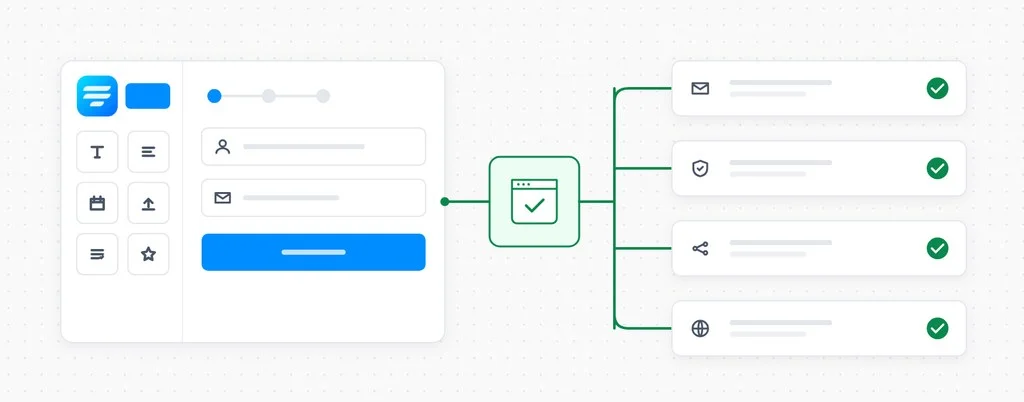
Fluent Forms has a habit that is easy to miss. When a visitor submits a form, the entry is saved and the success message appears almost instantly. The integrations you connected, the Mailchimp list, the webhook to your CRM, the Slack alert, the Zapier zap, can run afterwards as queued background jobs. That keeps the form fast for the visitor, which is exactly what you want. It also means the green confirmation on the page tells you one thing only: the entry was saved. It says nothing about whether anything downstream received it.
That split matters because a Fluent Forms form is rarely just a contact form. People build quote requests with calculated totals, intake questionnaires, volunteer applications, donation forms with payment items, and conversational one-question-at-a-time layouts, and then wire each of them to a handful of services. The form is where the visitor’s work ends, but it is where your process begins.
And most of what can go wrong is not Fluent Forms’ fault at all. The entry travels on to your mail provider, your DNS records, your connected services and whatever spam protection guards the form. Each one has its own settings and its own credentials, and each one can change without anyone touching the form. The builder keeps doing its job perfectly while a link further along quietly stops.
Automated testing covers that gap. CheckView fills in your Fluent Forms form in a real browser, submits it, checks that the entry was stored with the values it entered, and confirms the notification email actually arrived, on whatever schedule you set.
What a scheduled form test actually verifies
A page that loads is not the same as a form that delivers. These are the failures a scheduled test is designed to catch, and almost none of them live inside the form builder:
Email delivery. The key for your SMTP plugin is rotated, a DNS change drops an SPF or DKIM record, or your sending service starts routing notifications to spam. The form still shows its success message. The notification never reaches anyone.
CAPTCHA and anti-spam. A reCAPTCHA or Turnstile key is regenerated in another account, a security plugin gets stricter after an update, or a new anti-spam rule starts flagging real people. Each of these can turn a working form into one that rejects everybody, without a single error in your dashboard.
The rest of the site. A theme update, a new plugin, or a caching or optimization setting that bundles scripts differently. Multi-step forms, date pickers and file uploads all depend on that JavaScript, so a change on the other side of the site can break the second page of your form.
A scheduled test runs the whole path from start to finish and tells you the same day when any part of it changes.
What CheckView does on a Fluent Forms test
Point CheckView at a Fluent Forms form and it takes care of the setup:
- Automatic test generation. CheckView finds your published forms and the pages they appear on, whether they are embedded with the shortcode, the block or a synced pattern, and builds the test steps for you.
- Real submissions, no real emails. Every email notification on the form is redirected to the CheckView test inbox during the run, and CC and BCC recipients are removed. Your team and your clients never see a test entry.
- Spam protection handled for the test only. Fluent Forms’ built-in reCAPTCHA, hCaptcha and Turnstile are switched off for the CheckView session, along with its honeypot, its token-based spam protection and its Akismet check. CleanTalk, hCaptcha for WordPress, Simple Cloudflare Turnstile and WP Armour are handled too. Every real visitor still meets the full protection.
- Integrations kept quiet. With Disable Form Integrations During Tests turned on, CheckView keeps Fluent Forms’ email notifications and drops every other integration feed from the test submission, so a test does not land in your mailing list or your CRM.
- Verified against the database. The stored entry is compared with the values the test typed. CheckView reads the entry at a point in the submission that another plugin’s error cannot interrupt, so a misbehaving add-on elsewhere on the site does not produce a false failure.
- Cleaned up without cutting off your integrations. Because Fluent Forms Pro integrations can run as background jobs that load the entry after the submission, CheckView waits about 15 minutes before removing the test entry. When you let integrations run during a test, they still find what they need.
- The fiddly fields. Radio buttons, checkboxes, Terms and Conditions and GDPR fields are given stable identifiers for the test session, and payment items are targeted by field name rather than the ID Fluent Forms regenerates on each page load. File uploads are confirmed as finished before the form is submitted. Date and time fields are filled correctly even with restrictions like future dates only, a set range or a limited time window. Multi-step forms are navigated automatically.
Setting it up
Fluent Forms works the same way as every other supported form plugin in CheckView.
- Install or update the CheckView helper plugin on your site and keep it up to date.
- Make sure the form is published in Fluent Forms. Unpublished forms are not listed.
- In your CheckView dashboard, open the website and click Add Test Flow.
- Choose Fluent Forms, then pick the form and the page it appears on. If the form sits in a page builder widget or a popup and its page is not listed, use Add custom URL and enter the path.
- Set a schedule. Daily suits a main contact, quote or booking form.
CheckView builds the steps and runs a first test straight away, so you know the form is being monitored properly from the start. Whenever you want to see a run for yourself, trigger one manually and watch the recording CheckView keeps of the full submission.
Practical tips for Fluent Forms sites
Decide what a test should prove about your integrations. Leave Disable Form Integrations During Tests on for most forms, so test entries stay out of your connected tools while the email path is still checked end to end. For a form where the integration is the whole point, such as a lead form feeding a CRM, consider a flow with integrations allowed and a way to recognize and discard test contacts on the receiving side. The delayed cleanup exists so that a flow like that can work.
Expect to glimpse a test entry. Because cleanup waits about 15 minutes, a test entry can appear briefly in your Fluent Forms entries list. That is by design. The removal runs on WP-Cron, so on a site where WP-Cron is switched off, make sure a server cron job is running in its place.
Know where suppression stops. Suppression works on Fluent Forms’ own list of integration feeds. Code that another plugin attaches directly to a submission, outside that list, is not covered. For anything truly sensitive, test on a staging copy.
Leave card payments out of the scheduled test. CheckView does not complete card payments through Fluent Forms’ payment gateways, so a form that needs a card payment before it submits cannot be finished by a test. You can still monitor the page those forms sit on with a custom test flow, though the Fluent Forms handling described above will not apply.
Keep the helper plugin current, leave the daily schedule running, and let the test inbox tell you when something along the chain changes. Happy Testing!