
How to Automatically Test WPForms
A lot of WordPress contact forms are built with WPForms Lite, and there is one detail of the free version that is easy to forget once the form is live: WPForms Lite does not save entries to your WordPress database. When someone submits the form, WPForms sends the notification email and that is the record. Unless you switched on Lite Connect’s entry backups, there is no Entries screen to fall back on and no row in a table to go looking for.
Most of the time that is fine. The email arrives, someone replies, and nobody thinks about it. But it means the notification is not just a convenience on a Lite site. It is the delivery mechanism for the lead itself. If that email stops arriving, the visitor still sees the success message, WPForms still did its job, and the enquiry simply never reaches a person. Nothing on the site looks wrong.
WPForms Pro stores entries, which helps, but only if someone is checking the Entries screen. On most sites the inbox is still the thing people actually watch.
The broader point applies to both versions. The form is only the first step. After it accepts a submission it depends on your mail setup, your domain’s DNS records, whichever provider add-ons you connected, and the spam protection standing in front of it. Each of those is configured somewhere else, often by someone else, and any of them can change without the form knowing.
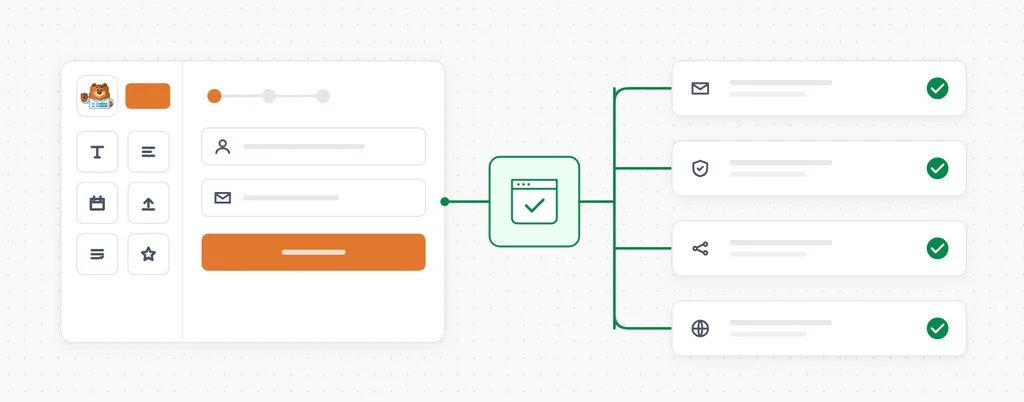
That is what automated testing is for. CheckView fills in your WPForms form in a real browser, submits it, confirms the submission went through and confirms the notification email arrived, on whatever schedule you choose.
What a scheduled form test actually verifies
A form rarely breaks because of the form. The failures that cost leads tend to come from the pieces around it:
Email delivery. An SMTP plugin’s credentials expire, someone edits the domain’s SPF or DKIM records while setting up a new email service, or the site starts sending from an address its mail provider no longer trusts. The form submits and shows its confirmation. The email never lands.
CAPTCHA and anti-spam. A reCAPTCHA or Turnstile key is regenerated in one place and not the other, the site moves to a new domain, or a security plugin starts scoring genuine visitors as bots. The visitor sees an error, or worse, nothing at all.
The rest of the site. Themes, caching and optimization plugins change how scripts load. WPForms relies on JavaScript for its modern dropdowns, date pickers, multi-page forms and drag and drop uploads, so a change that has nothing to do with the form can still stop it working.
A scheduled test submits the form the way a visitor would and checks the result at the other end, so you find out on the day something changes rather than when a client asks where their enquiries went.
What CheckView does on a WPForms test
Point CheckView at a WPForms form and it handles the setup for you:
- Automatic test generation. CheckView finds your WPForms forms and the pages WPForms has them embedded on, then builds the steps. There is usually nothing to configure by hand.
- Real submissions, no real emails. Notification emails are redirected to the CheckView test inbox for the length of the run, and CC recipients are removed. Your team and your clients never see a test enquiry, and the test still proves the email was sent and delivered.
- Validation that works on Lite. CheckView does not need WPForms to store the entry. The helper plugin copies the submission as WPForms processes it, and CheckView checks it field by field against what the test entered, with name fields checked part by part. On Pro, the test entry is then removed from WPForms’ entries so your real submissions stay clean.
- CAPTCHA handled cleanly. WPForms’ built-in reCAPTCHA, hCaptcha and Cloudflare Turnstile are switched off for the CheckView test session only, and a Custom Captcha field is taken out of the form for the test. CheckView also handles Akismet, CleanTalk, hCaptcha for WordPress, Simple Cloudflare Turnstile and WP Armour. Every real visitor keeps the full protection.
- Add-ons paused during tests. With Disable Form Integrations During Tests turned on, CheckView stops the integrations that run after a WPForms submission completes, which is where WPForms’ CRM and email marketing providers, webhooks, User Registration and Post Submissions run. Test entries stay out of your mailing lists and your CRM, while the notification email still sends.
- The trickier field types. Modern and classic dropdowns, including multiple selection. Smart phone fields with a country picker. Drag and drop and classic file uploads, with CheckView waiting until the upload has actually finished before it submits. Date pickers and date dropdowns, time pickers in both clock formats, and WPForms’ date and time limits such as weekdays only or a set time window. Multi-page forms are stepped through automatically.
Setting it up
WPForms works the same way as every other supported form plugin in CheckView.
- Install or update the CheckView helper plugin on your site and keep it up to date.
- In your CheckView dashboard, open the website and click Add Test Flow.
- Choose WPForms, then pick the form and the page it appears on.
- Set a schedule. Daily is the common choice for a main contact or quote form, and it matters most on Lite sites where the email is the only copy of the lead.
- Decide whether Disable Form Integrations During Tests should be on for this flow. Leave it on to keep test entries out of connected tools.
CheckView builds the steps and runs an initial test straight away, so you know the form is being monitored properly from the start. Whenever you want to see a run for yourself, trigger one manually and CheckView records the full submission for you to watch back.
Practical tips for WPForms sites
Keep the email check in the flow, especially on Lite. On a Lite site the database check proves WPForms accepted the submission, but the email check is the one that proves a person would actually have heard about it. Those are two different failures, and on Lite the second one is the one that loses the lead.
Know what the email check covers. Because test notifications go to the CheckView inbox, the test proves your site generated the email and your sending setup delivered it. It cannot see inside your recipient’s mailbox, so a filter rule on the receiving side is still worth checking by hand if enquiries seem to go quiet.
Forms outside page content need a custom URL. CheckView lists the pages WPForms itself records for each form. If a form sits in a widget area or somewhere else WPForms does not track as a page, choose Add Custom URL when you create the flow and enter the page path.
Decide what integration suppression should do. Leaving it on keeps test contacts out of your CRM and mailing lists. Turning it off for one flow is a quick way to confirm a provider connection end to end, as long as you are happy for a test entry to reach it.
Run one test after changing email or DNS. Any time the site’s mail plugin, sending domain or DNS changes, trigger a manual run rather than waiting for the schedule. It takes a minute and it answers the question before anyone else has to ask it.
Happy Testing!